
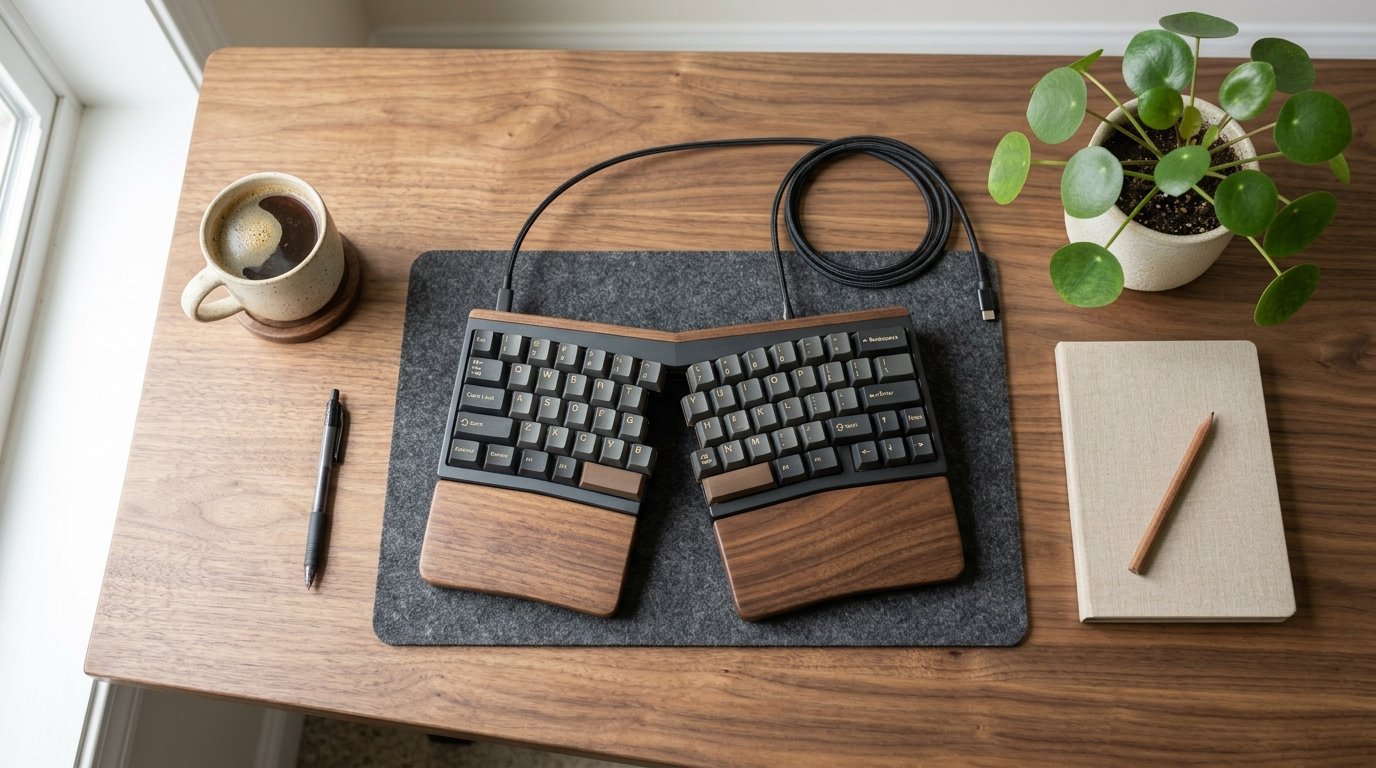
The 5 Best Ergonomic Mechanical Keyboards for Home Office in 2026
Does your wrist ache after a full day of meetings and spreadsheets? Is your right shoulder stiff from constantly reaching for the mouse? You’re not alone — and the cause, more often than not, isn’t “work stress”: it’s the wrong keyboard that’s been sitting on your desk for years.
Anyone who works 8 hours (or more) a day in front of a flat, compact keyboard is unknowingly forcing their wrists inward (ulnar deviation) and twisting their forearms in a way no human joint was designed to endure indefinitely. The good news is that peripheral engineering has come a long way, and today there are mechanical options — with the tactile feel and durability every keyboard enthusiast loves — designed specifically to correct that posture.
In this guide, the Yield Tech Reviews team took a deep dive into the 5 best ergonomic mechanical keyboards for home office available in 2026, focusing not just on comfort, but on what really matters to working professionals: the return on investment (ROI) in productivity, health, and durability.
⚡ TL;DR — Quick Summary for the Time-Pressed:
- Best overall value: Keychron Q11
- Best for those dealing with RSI/tendinitis: Kinesis Advantage360 Professional
- Best comfort-to-price balance: MoErgo Glove80
- Best for adjustable tenting and total customization: ZSA Moonlander
- Best affordable entry into the Alice layout: Keychron Q13 Max
Why Does an Ergonomic Mechanical Keyboard Make a Difference in Home Office Work?
A traditional keyboard forces your hands to sit side by side, joined together, with your wrists turned inward. Over hours, this puts strain on tendons and nerves — the classic recipe for Carpal Tunnel Syndrome and other repetitive strain injuries (RSI).
Ergonomic keyboards solve this with three main features:
- Split design: divides the keyboard into two halves, letting you position each hand at shoulder width.
- Tenting (central tilt): raises the inner edge of each half, bringing your posture closer to the natural “handshake” position.
- Columnar or Alice layout: arranges keys in columns aligned with finger length, reducing how far each finger has to stretch.
When combined with quality mechanical switches, these features deliver comfort and a superior typing experience — without the “mushy” feedback of cheap membrane keyboards.
1. Keychron Q11 — The Value-for-Money Favorite
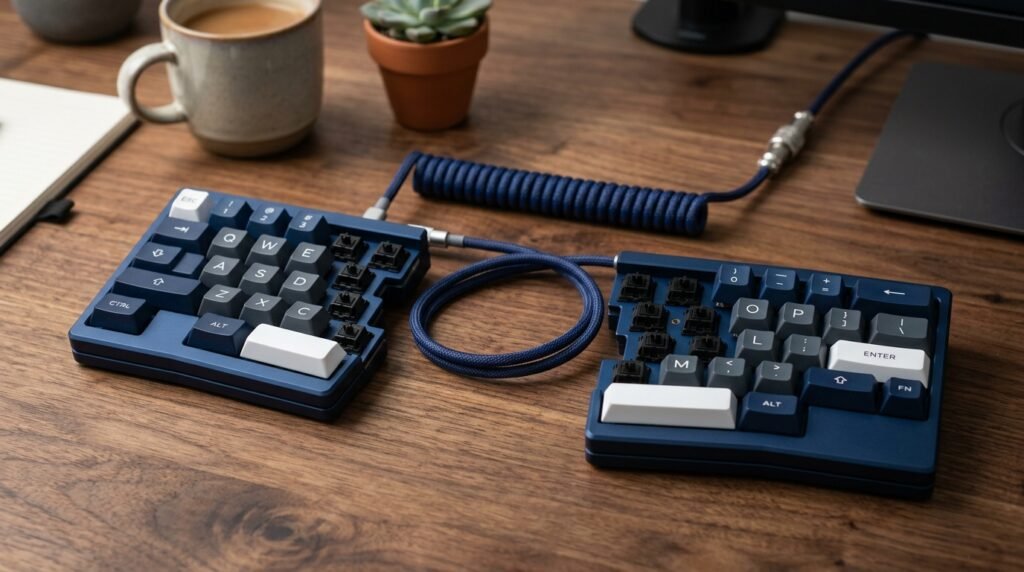
If you want to feel the benefits of a split keyboard without paying premium prices, the Keychron Q11 is the most balanced entry point on the market. It keeps the traditional QWERTY layout (with a slight stagger), so the learning curve is practically zero — you separate the two halves and already feel shoulder relief on day one.
| Specification | Detail |
|---|---|
| Approximate price | $205 – $220 |
| Switch type | Gateron mechanical, hot-swappable |
| Build | CNC aluminum body |
| Connectivity | USB-C cable (Ultra version offers wireless) |
| Programmable | Yes (QMK/VIA) |
| Extras | 2 rotary encoders (one on each half) |
Strengths (Pros):
- Zero learning curve — keeps the traditional staggered layout
- Premium aluminum build, feels built to last
- Fully customizable via QMK/VIA
- Rotary encoders are handy for volume control or scrolling through code
Weaknesses (Cons):
- No tenting kit included
- No wrist rest included in the box
- “Intermediate” ergonomics: solves the shoulder problem, but doesn’t reduce finger reach as much as a columnar keyboard
Best for: professionals who want a real first step toward ergonomics without having to relearn how to type from scratch.[INSERT AFFILIATE LINK/BUY BUTTON HERE]
2. MoErgo Glove80 — The Best Comfort-to-Price Balance
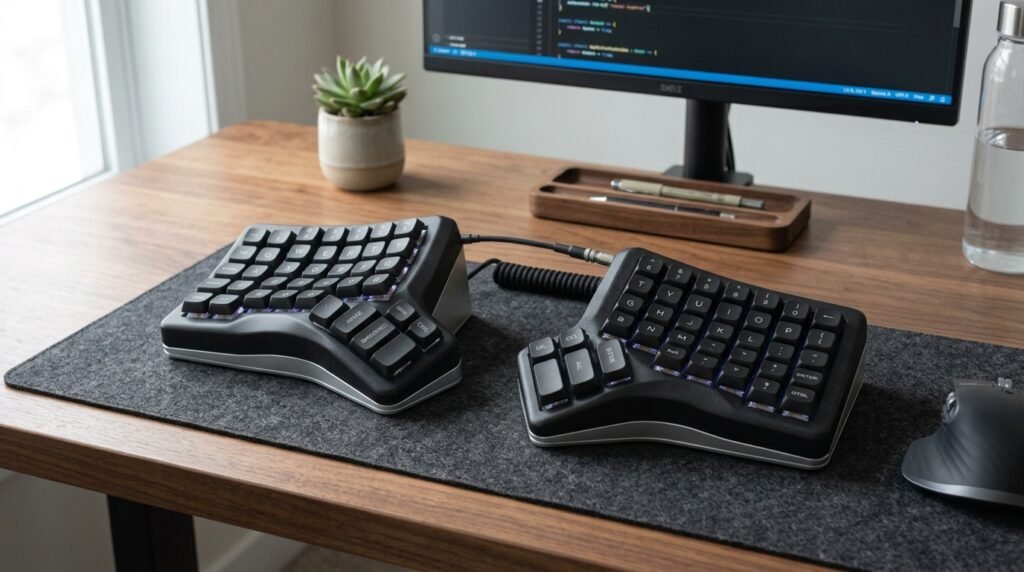
The MoErgo Glove80 takes ergonomics a step further: each half has concave “wells” that follow the natural movement of your fingers, drastically reducing the effort of reaching distant keys. It’s a low-profile keyboard, but with real mechanical switches — not a disguised membrane.
| Specification | Detail |
|---|---|
| Approximate price | $399 |
| Switch type | Low-profile mechanical (choc), hot-swappable |
| Layout | Concave columnar, fully split |
| Connectivity | Wireless (Bluetooth) or USB-C |
| Programmable | Yes (ZMK firmware) |
| Tenting | Adjustable via integrated stands |
Strengths (Pros):
- Concave keywells genuinely and measurably reduce finger movement
- Wireless, with solid battery life
- Modern, flexible ZMK firmware
- More affordable than direct columnar competitors
Weaknesses (Cons):
- Real learning curve — the columnar layout requires 1 to 3 weeks of adjustment
- Low-profile switches feel different from traditional mechanical ones (shorter key travel)
Best for: anyone already experiencing recurring pain who is willing to invest 2-3 weeks of readjustment in exchange for high-level ergonomics.[INSERT AFFILIATE LINK/BUY BUTTON HERE]
3. Kinesis Advantage360 Professional — The Gold Standard for Those Already Dealing with RSI
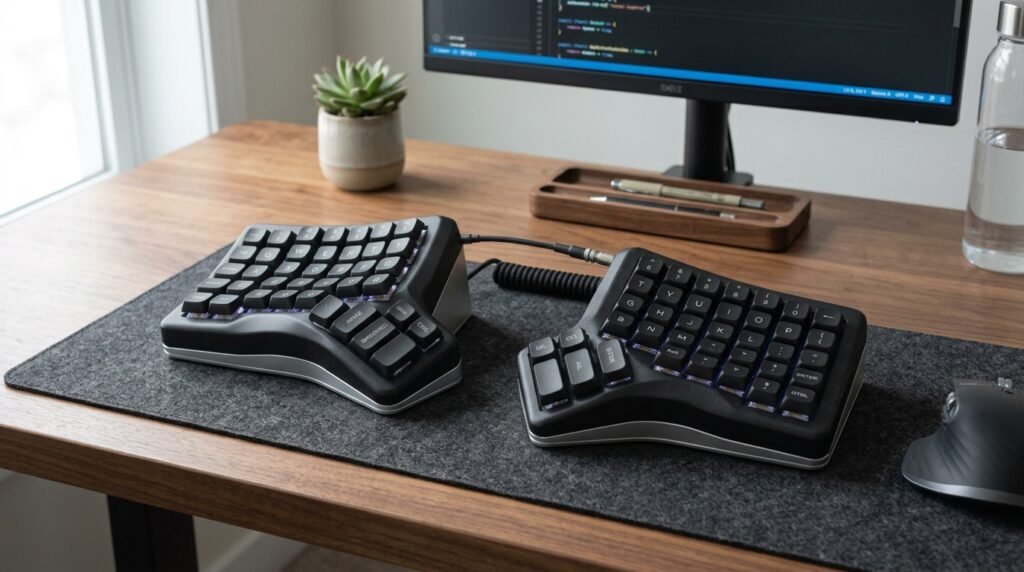
A reference in ergonomics for more than 30 years, Kinesis redesigned its iconic contoured shape in the Advantage360 Professional. Each half has a deep sculpted “well” for your fingers to naturally rest on the keys, with almost no need to stretch or lift.
| Specification | Detail |
|---|---|
| Approximate price | $499 |
| Switch type | Mechanical (Cherry MX or similar), hot-swappable |
| Layout | Contoured, fully split, wireless |
| Thumb cluster | Yes — dedicated, reduces strain on index/pinky fingers |
| Programmable | Yes, with onboard memory (works without installed software) |
Strengths (Pros):
- Decades of clinically-informed ergonomic refinement
- Dedicated thumb clusters take load off the smaller fingers
- Key configuration saved in the keyboard’s own memory
Weaknesses (Cons):
- The most expensive option on this list
- Steep learning curve, similar to learning a new instrument
- Bulky shape, not very portable
Best for: professionals already diagnosed with RSI or tendinitis who need the most robust solution available, regardless of cost.[INSERT AFFILIATE LINK/BUY BUTTON HERE]
4. ZSA Moonlander — Total Customization and Adjustable Tenting
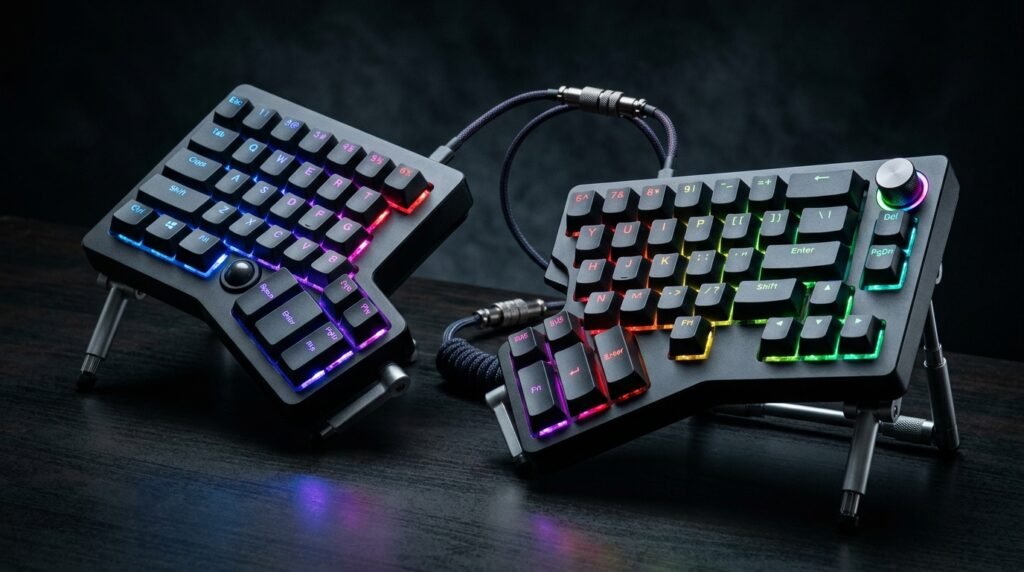
The ZSA Moonlander is the keyboard for enthusiasts who want total control over every aspect of their typing experience. With open-source QMK firmware and the online Oryx configurator, every key can have up to four different functions (tap, hold, double-tap, and tap-and-hold).
| Specification | Detail |
|---|---|
| Approximate price | $365 (the “Platform” tenting kit sold separately, +$112) |
| Switch type | Cherry MX or Kailh, hot-swappable |
| Connectivity | USB-C cable |
| Tenting | Continuously adjustable |
| Programmable | Yes (QMK + Oryx software with usage heatmap) |
Strengths (Pros):
- Continuously adjustable tenting — find the exact angle for your body
- Extremely user-friendly Oryx software, with a key-usage heatmap
- Direct technical support from ZSA’s engineering team
Weaknesses (Cons):
- Wired connection only — no fully wireless option
- Can feel less stable/lighter on the desk compared to solid aluminum keyboards
- Tenting kit sold separately increases total investment
Best for: makers, developers, and creatives who value deep customization and want to fine-tune every millimeter of their typing experience.[INSERT AFFILIATE LINK/BUY BUTTON HERE]
5. Keychron Q13 Max — The Gateway to the Alice Layout
[INTERMEDIATE IMAGE BLOCK — SECTION 5]
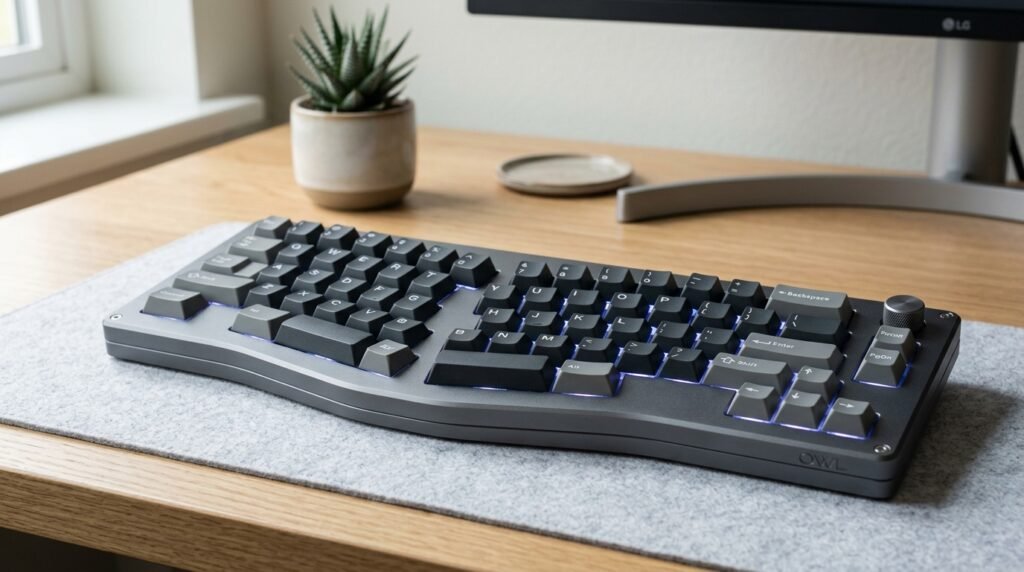
Not everyone wants (or needs) to jump straight into a fully split, two-piece keyboard. The Alice layout — used in the Keychron Q13 Max — offers a subtle ergonomic curve in a single piece, with no adjustment period and none of the desk clutter of two separate modules.
| Specification | Detail |
|---|---|
| Approximate price | $250 |
| Switch type | Gateron mechanical, hot-swappable |
| Layout | Alice 96%, unibody |
| Connectivity | Wireless (Bluetooth/2.4GHz) and USB-C cable |
| Programmable | Yes (QMK/VIA) |
Strengths (Pros):
- No learning curve — works right out of the box like a normal keyboard
- Wireless, with good battery life
- Single-piece body: easier to carry around than a true split keyboard
Weaknesses (Cons):
- More modest ergonomic gains compared to fully split or columnar models
- Fixed split angle — you can’t adjust the tilt between your hands
Best for: anyone who wants to try out the ergonomics concept with no real commitment, or who frequently carries their keyboard between office and home.[INSERT AFFILIATE LINK/BUY BUTTON HERE]
Yield Tech Reviews’ ROI / Cost-Benefit Verdict
Here’s the Yield Tech Reviews difference: it’s not enough to say “it’s comfortable” — let’s do the math. Consider a professional who works 8 hours/day, 22 days a month, actively typing for at least half of that time.
- Reduced pain and time off: ergonomics studies point to reductions of up to 25-50% in wrist deviation when using split/tented keyboards. A single day off due to RSI, considering the average salary of a tech professional, already costs more than most keyboards on this list.
- Durability: hot-swappable mechanical switches last, on average, 50 to 100 million clicks per key — the equivalent of 10-15 years of heavy use, versus 3-5 years for a common membrane keyboard. This spreads the cost per year of use to very low values.
- Productivity: less pain means fewer forced breaks and less distraction throughout the day. Even a conservative gain of 5-10 minutes “recovered” per day already adds up to entire hours of work recovered per month.
Doing the math: a $250 keyboard divided over a conservative 8-year lifespan costs less than $3 per month. If it prevents even a single pain episode that pulls your focus for a few days a year, the investment has already paid for itself. That’s real “Yield” — a tangible return on a small, one-time expense.
Buyer’s Guide: What to Look At Before Deciding
- Willingness to commit to a learning curve: columnar keyboards (Glove80, Kinesis, Moonlander) require 1-3 weeks of readjustment. If you can’t afford to “lose” productivity during that period, start with a staggered model (Q11) or Alice layout (Q13 Max).
- Desk size and space: fully split keyboards take up more horizontal space — check whether your desk can fit the keyboard “open” at shoulder width.
- Hot-swappable switches: let you change switch type (linear, tactile, clicky) without soldering, extending the keyboard’s lifespan and letting you customize sound and feel.
- Wireless vs. wired connectivity: wireless gives you placement freedom, but check the manufacturer’s stated battery life.
- Firmware support (QMK/VIA/ZMK): ensures you’ll be able to remap keys and build shortcut layers in the future, without depending on manufacturer updates.
Overall Comparison Table
| Model | Approx. Price | Yield Tech Score | Key Highlight |
|---|---|---|---|
| Keychron Q11 | $205 – 220 | 9.2 / 10 | Best value for money, zero learning curve |
| MoErgo Glove80 | $399 | 9.0 / 10 | Best ergonomics-to-price balance |
| Kinesis Advantage360 Professional | $499 | 9.3 / 10 | Gold standard for existing RSI sufferers |
| ZSA Moonlander | $365 (+$112 tenting kit) | 8.8 / 10 | Unmatched customization and adjustable tenting |
| Keychron Q13 Max | $250 | 8.7 / 10 | Best entry point into the Alice layout |
Conclusion: Which Ergonomic Mechanical Keyboard Should You Choose?
If you’re just starting out and want the smoothest possible transition, the Keychron Q11 is the safest, most balanced choice. If you already deal with recurring pain and need the most complete solution, the Kinesis Advantage360 Professional is the right investment. Meanwhile, anyone looking for the perfect middle ground between advanced ergonomics and affordability should look at the MoErgo Glove80.
There’s no single “best keyboard in the world” — there’s the best keyboard for your body and your routine. And any of the five models on this list represents a massive upgrade over the flat keyboard that’s probably sitting on your desk right now.
So, do you already use an ergonomic keyboard, or are you thinking about switching? Tell us in the comments which model caught your interest the most — and whether you’ve ever had wrist pain that made you consider making the switch![INSERT AFFILIATE LINK/BUY BUTTON HERE – CLOSING BANNER]
Frequently Asked Questions (FAQ)
Is an ergonomic keyboard really worth it?
Yes, especially for anyone who spends more than 4 hours a day typing. The gain in comfort and RSI prevention usually pays off the initial investment within a few months, considering the cost of potential time off or treatment.
Does a split mechanical keyboard have a learning curve?
It depends on the model. Keyboards that simply split a traditional layout into two pieces (like the Keychron Q11) have almost no learning curve. Models with a columnar layout (Glove80, Moonlander, Kinesis), on the other hand, require 1 to 3 weeks of adjustment.
What’s the best mechanical keyboard for working without wrist pain?
For those already experiencing pain, the Kinesis Advantage360 Professional and the MoErgo Glove80 are the most recommended options, since they offer sculpted keywells that drastically reduce finger and wrist movement.
Do I need tenting (tilt) on my keyboard?
If you feel tension in your forearm or shoulder, yes. Tenting brings your hand posture closer to the natural “handshake” position, reducing forced forearm rotation.
Do ergonomic mechanical keyboards work well for gaming too?
Some perform reasonably well, but that’s not their main focus. If competitive gaming is your priority, it’s worth considering a dedicated traditional mechanical keyboard with response times optimized for gaming.